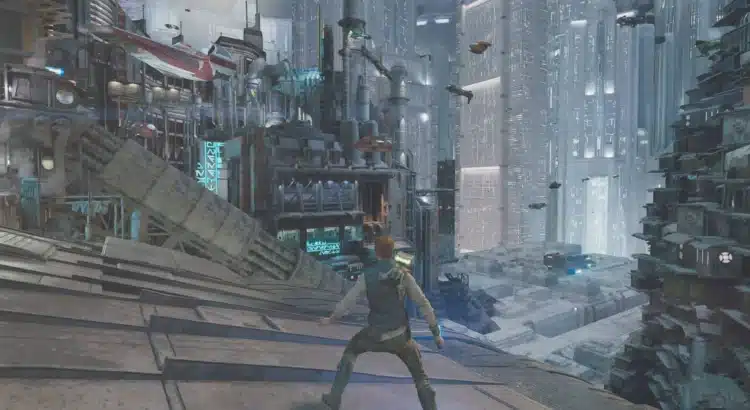
Star Wars Jedi: Survivor already looks phenomenal, but PC players know there’s always a little more performance, polish, or flexibility hiding behind the curtain. And that’s exactly what this Reshade addon delivers—a surprisingly powerful toolkit that unlocks the dev console, restores proper ultrawide support in cutscenes, and hands you granular control over FOV, camera distance, and several key visual effects.
If you’ve ever felt boxed in by Jedi Survivor’s camera or frustrated by its cinematic black bars during story moments, this mod is the answer.
If you’ve ever wanted a proper developer console—yes, an actual dev console—this addon also checks that box.
And if you’re the type who likes tinkering until every screenshot hits the right mood? You’re absolutely the target audience.
This mod is available here: Star Wars Jedi: Survivor – Reshade Addon
Let’s break down why this addon is quickly becoming one of the most useful Star Wars Jedi: Survivor mods to install.
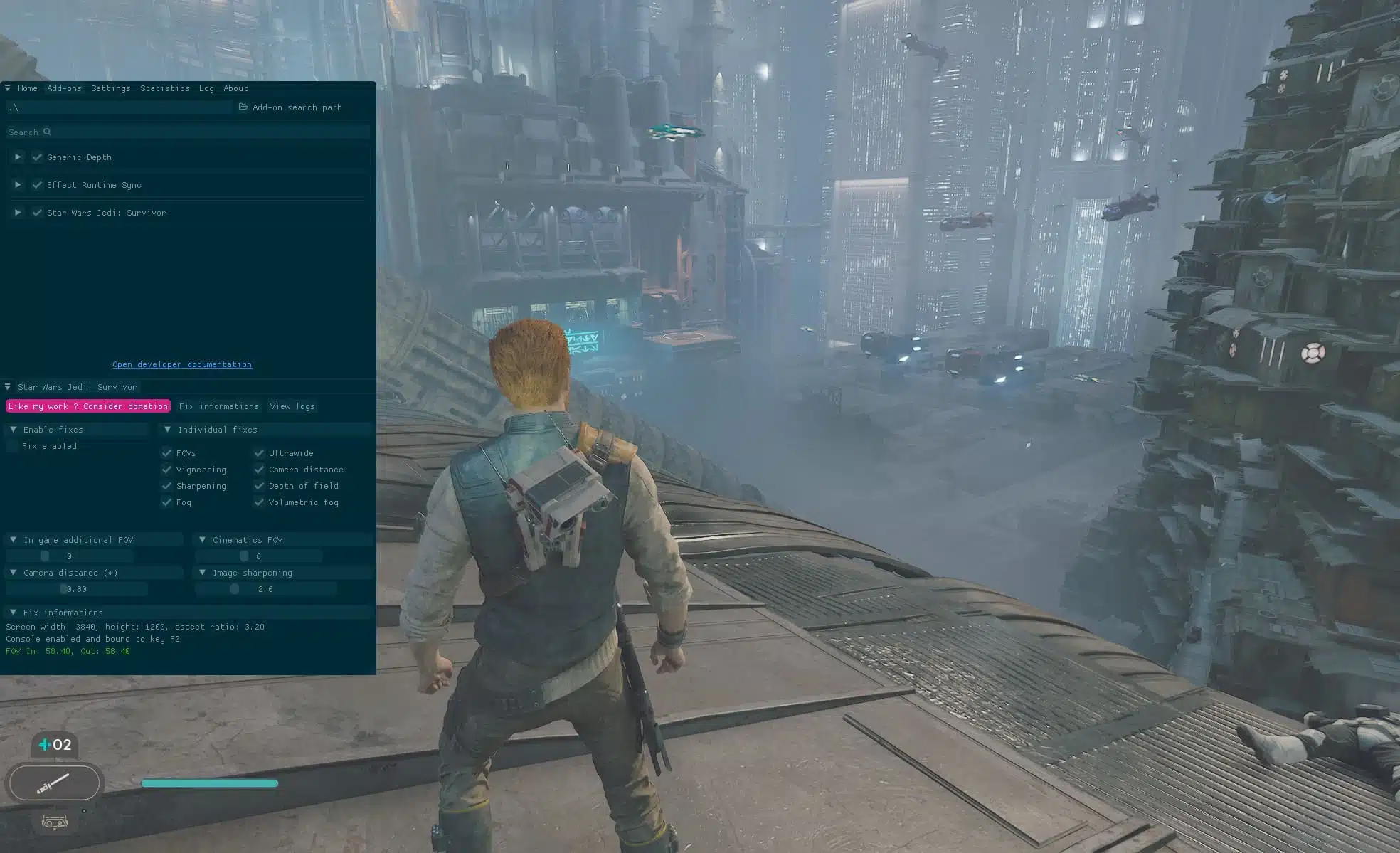
A Reshade Addon That Does Way More Than “Add Filters”
There are plenty of reshade presets out there that simply recolor, sharpen, or “cinematic-ize” a game.
This is not one of those.
This addon is essentially a mini toolset that:
- Re-enables a functional dev console (default key: F2)
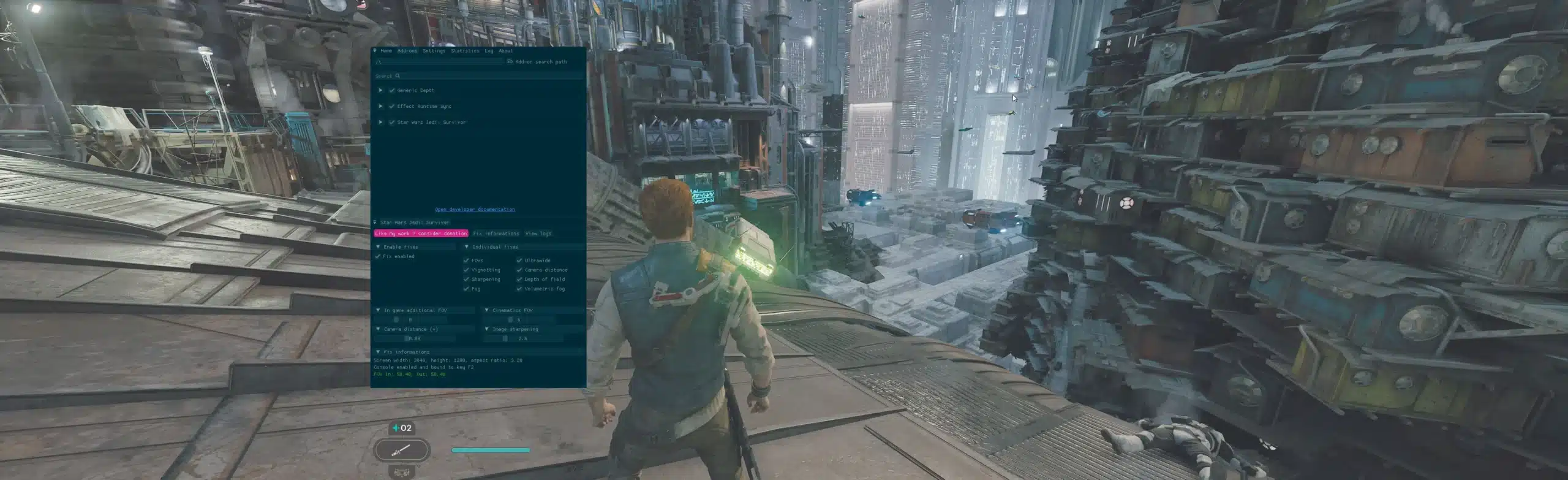
- Unlocks ultrawide support during cutscenes
- Lets you adjust camera distance
- Allows full FOV tweaking
- Provides toggles for various visual fixes
- Runs through a tidy, dockable overlay inside Reshade
It’s one of those rare “quality-of-life overhauls” that doesn’t touch the game’s core files or visuals. Everything is injected from the outside through Reshade’s addon support, meaning compatibility and stability are remarkably solid.
Why Ultrawide Players Call This Addon a Lifesaver
Star Wars Jedi: Survivor looks incredible on ultrawide monitors…
…until a cutscene rolls in.
Then the cinematic black bars kick you straight back into a 16:9 tunnel.
This addon fixes that problem by:
- Removing the restrictive cutscene cropping
- Properly scaling the FOV
- Preventing the camera from snapping too close
- Preserving visual composition while maintaining your ultrawide immersion
For anyone running 21:9, 32:9, or beyond, it’s the difference between “nice game” and “holy hell, this is gorgeous.”
Installation: Surprisingly Simple for Something This Powerful
Modders sometimes write installation instructions like they expect users to hold a PhD in file structure.
This mod author did the opposite—everything is clean, direct, and painless.
1. Download and install Reshade with addon support
This part matters.
You need the special build of Reshade that allows addons.
The regular public build won’t cut it.
2. Point the installer at the correct executable
Navigate to:
SwGame\Binaries\Win64
and select JediSurvivor.exe.
Choose DX12 when prompted.
3. Extract the mod files next to the game executable
Unzip the archive directly beside JediSurvivor.exe.
4. Launch the game and press the Home key
Reshade pops up.
Move the main overlay to reveal the addon panel.
Dock it if you prefer keeping things tidy.
5. Enable the fixes you want
Check the Fix Enabled box first—this is the master switch.
Then tweak sliders to personalize your:
- FOV
- Camera distance
- Effects
- Ultrawide behavior
That’s it.
No script merging.
No complicated patches.
Just plug, launch, toggle, and enjoy.
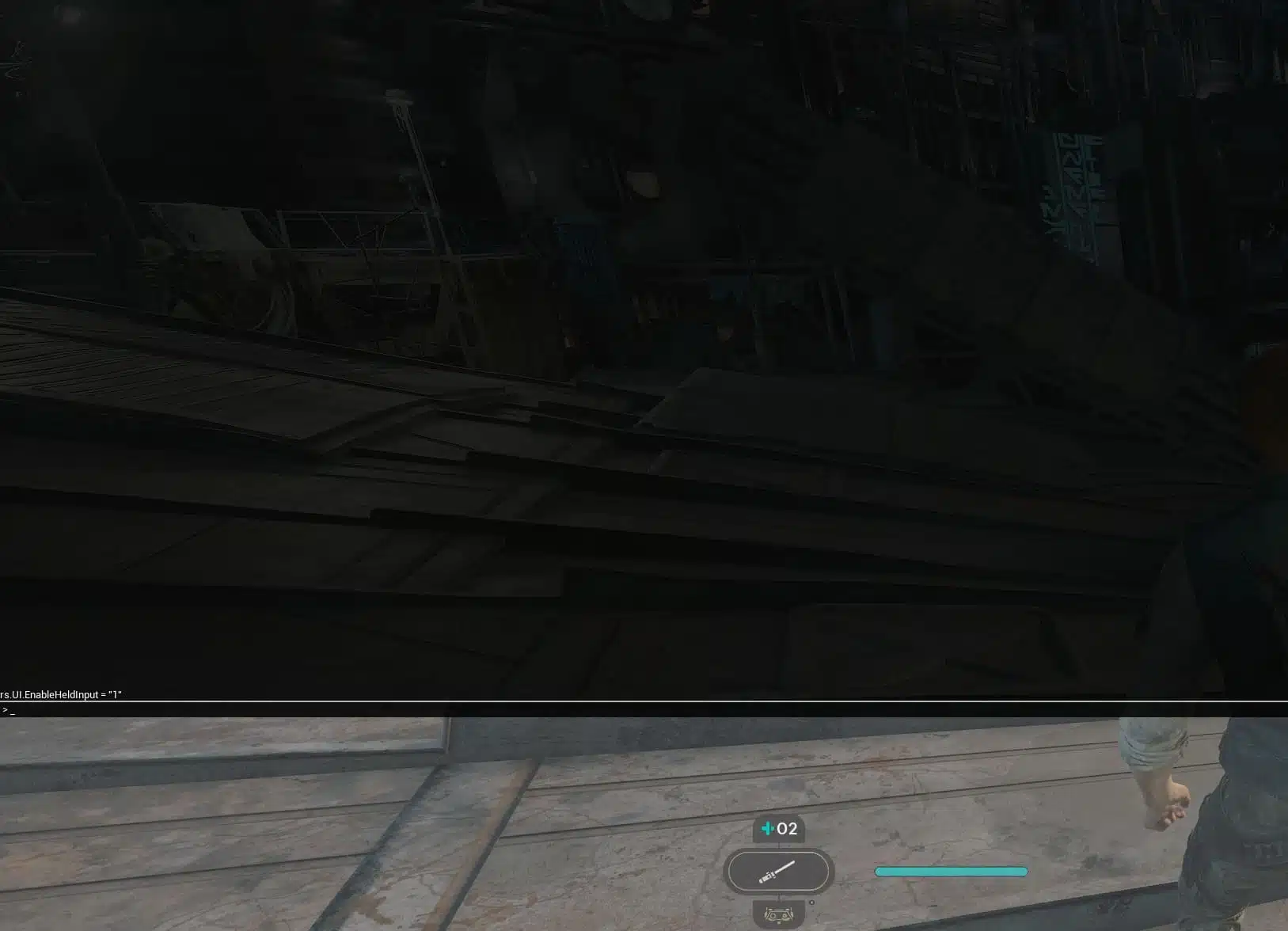
Using the Dev Console: A Feature Many Thought Was Gone Forever
Jedi Survivor shipped without a usable dev console for players, and modders have been poking at it ever since.
This addon brings it back—with zero fuss.
Default hotkey: F2
From there, you can:
- Run debug commands
- Test mods
- Experiment with visuals
- Access features normally hidden
It’s the kind of tool that makes PC players say, “I knew this game had more under the hood.”
And it does.
Camera Control: The Hidden Feature That Changes Everything
Jedi Survivor’s default camera distance works… most of the time.
But sometimes you want:
- A little more breathing room
- A wider FOV for landscape shots
- A tighter FOV for dramatic dueling
- Screenshots that look like movie posters
This addon gives you full control through simple sliders.
No ini editing. No restarts.
Reshade overlays update in real-time, meaning you can see exactly what your tweaks are doing as you make them.
A Few Known Issues (And Easy Fixes)
There’s only one real hiccup:
Reshade overlay may freeze your mouse after loading a save.
But the workaround is so simple it barely counts:
- Press the Windows key
- Click back into the game
- Mouse works again
This happens because Jedi Survivor locks exclusive mouse control, but the fix takes less than a second.
Why This Addon Has Become a Must-Have Jedi Survivor Mod
Mods usually fall into one of two categories:
- Pretty (visual presets, texture packs)
- Functional (fixes, QOL tools, debug utilities)
This addon sits comfortably in the rare third category:
Pretty + Functional + Transformative
It doesn’t change how the game plays, but it absolutely changes how the game feels.
Ultrawide cutscenes feel cinematic.
Photo mode becomes a playground.
Camera perspective feels modern and flexible.
And the dev console adds a layer of freedom most players never get.
Whether you mod lightly or heavily, this addon earns its place at the top of your installation list.
Stay connected with the galaxy’s latest updates!
Follow us on X, Facebook, Instagram, or Pinterest for exclusive content, mod guides, Star Wars gaming news, and more. Your support helps keep the Holonet alive—one click at a time.
Author
Related Posts

Bryan Fuller Says ANDOR’s “Who Are You” Is the Most Important Episode of Television This Year — And Maybe for Years to Come
Mia Goth Says She’s Having “An Incredible Time” Filming Star Wars: Starfighter — And Praises Shawn Levy’s “Electric” Energy-
Tom Stoppard Has Died at 88 — The Uncredited Writer Behind the Iconic Darth Plagueis Speech 
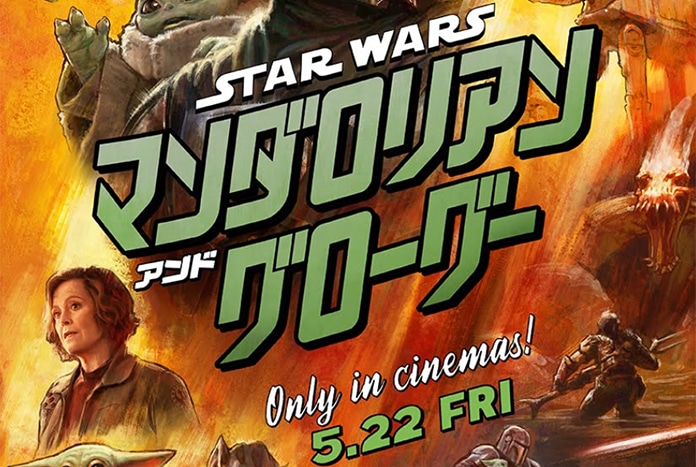
New Japanese Trailer for The Mandalorian & Grogu Drops — Featuring Fresh Footage



-
How Aviator Changed Fast Play Expectations in Online Casinos 
How Andor Season 2’s Mina-Rau Costumes Draw Inspiration From Brueghel and Van Gogh-
The Book of Boba Fett & Andor Character Packs for LEGO Star Wars: The Skywalker Saga Released 3 Years Ago Today! 
Reserve Your Signed Pablo Hidalgo Book at Thank the Maker: The Force Awakens – A Must-Have Moment for Star Wars Fans